Goodreads import guide
How to export your Goodreads library to CSV and move it to another app
Download a CSV backup from Goodreads, then import it into Inkshelf. You can review new books, duplicates and invalid rows before adding anything.
Quick answer
- Sign in to Goodreads on the web. Open My Books, then choose Import and export under Tools. Download your library as a CSV file.
- In Inkshelf, open Settings, find Your data, and select Import.
- Choose the CSV file, review the import preview, select how to handle duplicates, then confirm.
Export your library from Goodreads
Use the Goodreads website
Sign in on Goodreads in a web browser. The export option is in the website tools, not the Goodreads mobile app. If you are on a phone, open Goodreads in your browser and switch to the desktop site if the tools are missing.
Open Import and export
Go to My Books. In the Tools area, choose Import and export. Goodreads may ask you to sign in again before showing the page.
Download the CSV backup
Find the export section and choose the option to export or download your bookshelves. Save the CSV file without editing its header row. Large libraries may take a little while to prepare.
Goodreads Help has instructions for downloading a library CSV. Its export page requires a Goodreads account, so labels can vary with the current account interface. Read Goodreads Help.
What the Goodreads CSV imports
Inkshelf reads the standard Goodreads columns below. It does not import every field from the export.
| Goodreads field | What Inkshelf keeps |
|---|---|
| Title and Author | The book title and author names. |
| ISBN13 or ISBN | A valid ISBN, used to identify the book and help find duplicates. |
| My Rating | Your one to five star rating, when present. |
| Exclusive Shelf or Bookshelves | A reading status. Currently Reading, Read and Did Not Finish map to their matching Inkshelf statuses. Other shelf values become To Read. |
| Number of Pages, Publisher and Year Published | Available book details. |
| Date Read | One finish date for a book marked as Read. |
Check the CSV before importing
Keep the original Goodreads export as a backup. The importer looks for Goodreads column names such as Title, Authorand ISBN13, so leave the header row unchanged. If you open the file in a spreadsheet app, save a copy in CSV format before importing.
The Inkshelf preview shows new books, duplicates and invalid rows before you confirm. Rows without a usable title are invalid. Missing ISBNs can make duplicate matching less certain, so review the preview when those values are blank.
Import the CSV into Inkshelf
Open the import tool
Sign in to Inkshelf, open Settings, then find the Your data section and select Import. You can also choose Import from the first-book checklist.
Select your Goodreads CSV
Leave the File tab selected and choose the CSV you downloaded. Inkshelf also accepts its own JSON export. CSV files over 64 MB need to be split before import.
Review duplicates before confirming
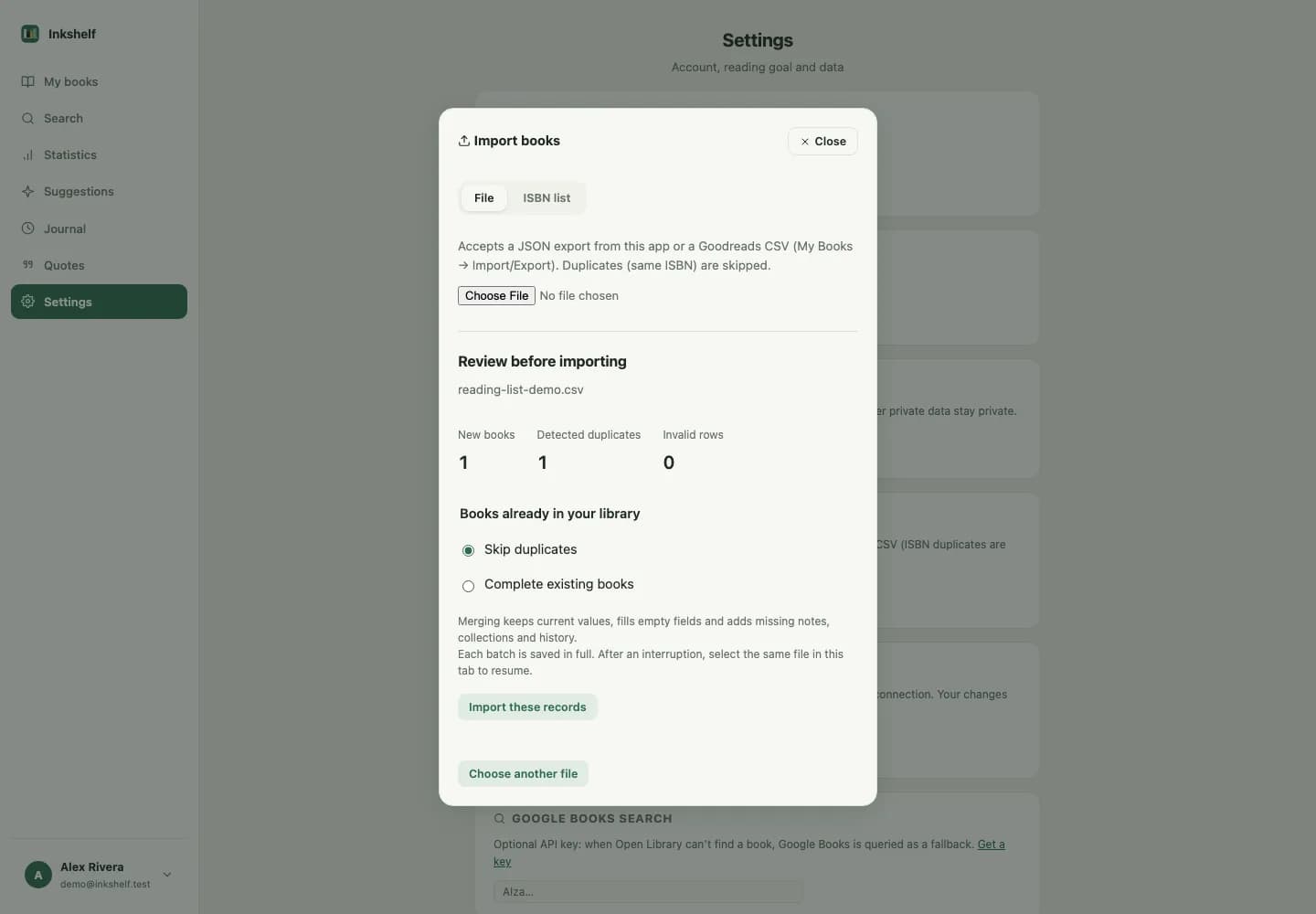
The preview separates new books, duplicates and invalid rows. Choose Skip duplicates to leave existing books alone, or Complete existing books to fill their missing details. Existing values, reading status and progress are preserved.
Start the import
Select Import these records. If the import is interrupted, choose the same file again in the same browser tab to resume from its saved checkpoint.
Ready to bring your books over?
Create an Inkshelf account and import your Goodreads CSV from Settings.
Import your Goodreads libraryCommon questions
Why can’t I find Goodreads’ export option?
Sign in on the Goodreads website and open My Books. The export option is under Tools. It is not available in the mobile app. See Goodreads Help.
Why are some rows marked invalid?
Inkshelf needs a usable book title. Keep the original CSV header row and check the title values for any rows listed as invalid.
Will importing replace books already in Inkshelf?
No. The preview lets you skip duplicates or complete existing books. Completing books fills missing details while keeping existing values, status and progress.
Will my Goodreads reviews and custom shelves transfer?
No. The CSV importer does not read review text or turn custom shelves into collections. It imports the supported book fields and a single reading status.
Can I import books without an ISBN?
Yes, if the row has a usable title. An ISBN helps Inkshelf identify the edition and match duplicates, so review the preview carefully when ISBNs are missing.